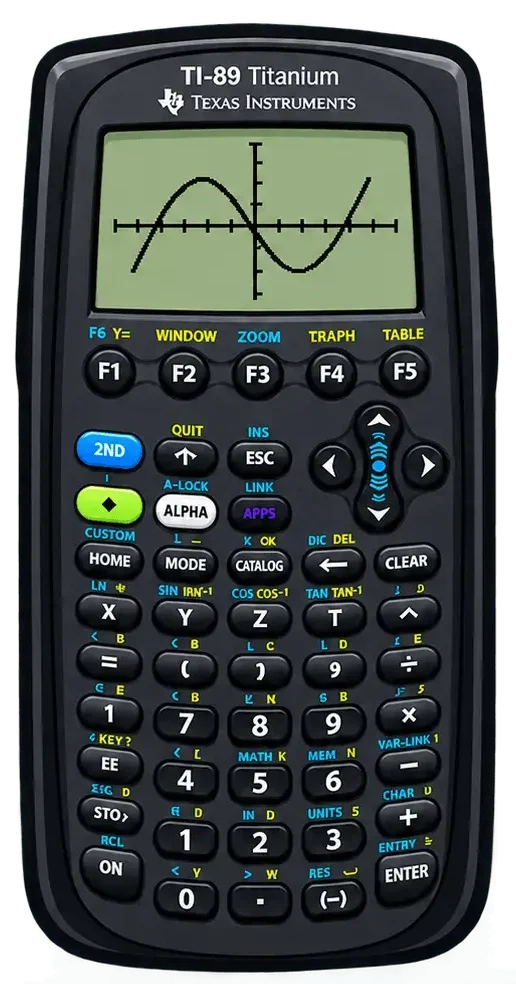
TI 89 Titanium Calculator Online | Free TI 89 Graphing Calculator
The calculator above gives you a free way to use a TI 89 Titanium calculator online without having the physical device beside you. Enter a mathematical expression, select the function you need, and work through your calculation directly in your browser.
It is designed for the kind of math commonly handled with a graphing calculator, including algebra, calculus, trigonometry, complex numbers, matrices, and symbolic expressions. You can use it for quick calculations, checking your work, or practicing problems while studying.
What Can You Do With the TI 89 Titanium Calculator?
It’s built for more than basic arithmetic. Its mathematical tools cover many of the problems students encounter in algebra, calculus, trigonometry, and other areas of mathematics. With the online calculator above, you can work with these types of calculations directly from your browser.
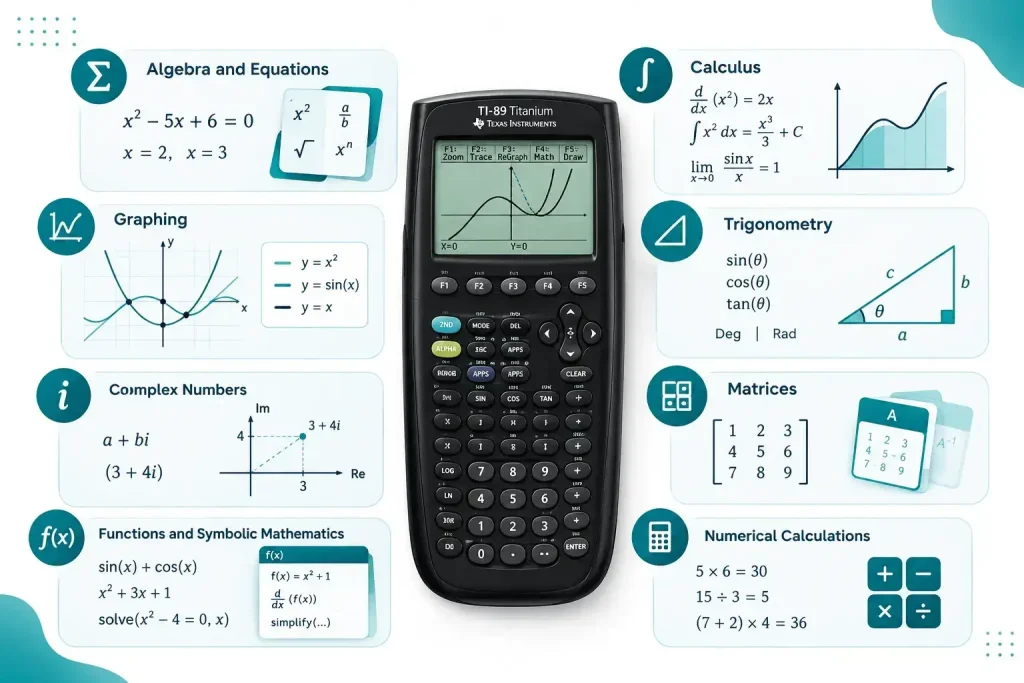
Algebra and Equations
Use the calculator to work with algebraic expressions, equations, polynomials, fractions, powers, roots, and other common algebra problems. It can also help when you need to check a result after solving an equation by hand.
Calculus
Calculus work can involve derivatives, integrals, limits, and symbolic expressions that are difficult to enter or evaluate manually. The calculator can be used to perform supported calculus operations and check your results while practicing.
Graphing
Enter functions and view their graphs to examine how equations behave visually. Graphing can help with functions, intersections, zeros, and other problems where seeing the relationship between values is useful.
Trigonometry
Work with common trigonometric functions and related calculations. Pay attention to the calculator’s angle mode when working with degrees or radians, since the selected mode affects the result.
Complex Numbers
Complex number calculations can be handled without working through every step manually. This is useful for problems involving real and imaginary parts, arithmetic with complex values, and related mathematical expressions.
Matrices
Matrices are useful in algebra, linear systems, and other mathematical applications. Supported matrix operations can save time when working with larger sets of values or checking calculations completed by hand.
Functions and Symbolic Mathematics
The calculator can work with functions, variables, and symbolic expressions rather than treating every calculation as a simple numerical problem. This makes it useful when you need to manipulate an expression and keep its mathematical form.
Numerical Calculations
You can also use it for everyday mathematical calculations that do not require symbolic methods. Enter values directly, apply the required operation, and use the result as part of a larger calculation or to verify your work.
How to Use the Calculator Online
Using the calculator is straightforward once you know where to start. You can enter a problem, select the operation you need, and review the result without setting up a physical calculator. The exact steps can vary depending on the type of calculation you are working on.
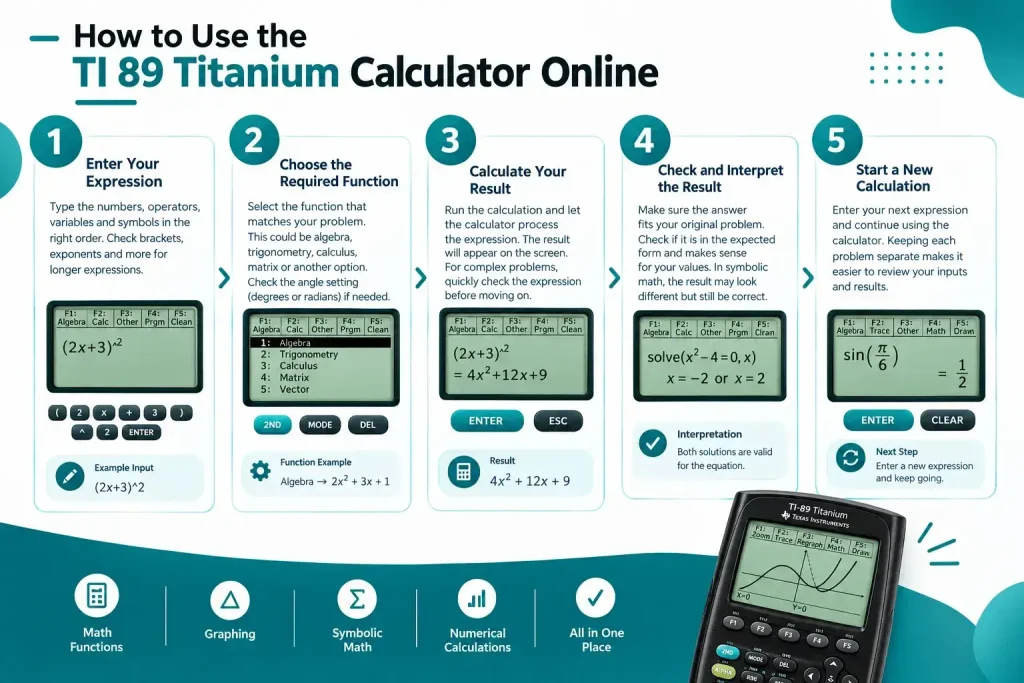
Enter Your Expression
Start by entering the mathematical expression or values you want to calculate. Use the calculator keyboard to enter numbers, operators, variables, and other symbols in the required order. For longer expressions, check the input before calculating so that brackets, exponents, and other symbols are in the right place.
Choose the Required Function
Select the function that matches your problem. This might be an algebraic operation, trigonometric function, calculus operation, matrix command, or another available function. If your calculation depends on degrees or radians, check the current angle setting before continuing.
Calculate Your Result
After entering the problem and selecting the required function, run the calculation. The calculator processes the expression and displays the result on the screen. For more complicated problems, give the displayed expression a quick check before moving on to the next calculation.
Check and Interpret the Result
A calculator result still needs to be understood in the context of the original problem. Check whether the answer is in the expected form and whether it makes sense for the values you entered. When working with symbolic mathematics, the displayed answer may look different from the form shown in your textbook while representing the same mathematical result.
Start a New Calculation
Once you have finished, enter the next expression and continue using the calculator. Keeping each problem separate makes it easier to review your inputs and results, especially when working through several exercises in a row.
TI 89 Graphing Calculator
Graphing is one of the main reasons students use a this calculator for mathematics. Instead of working with an equation only as text, you can use a graph to see how a function behaves and examine important points visually. The available graphing modes also make it possible to work with different types of mathematical relationships.
Function Graphing
Function graphing lets you enter an equation and view its curve on the graph screen. This can be useful for studying the behavior of a function, comparing equations, and locating points such as zeros or intersections when supported by the calculator.
Parametric Graphing
Parametric graphing represents a curve using separate expressions based on a parameter. It is useful for mathematical relationships that are not most conveniently represented as a single y as a function of x.
Polar Graphing
Polar graphing uses a radius and angle to describe points on a graph. This mode is useful for equations and curves that are naturally expressed using polar coordinates.
Graphing Sequences
Sequence graphing allows you to work with sequences and view their behavior graphically. It can help when studying how sequence values change and how a sequence develops as its index increases.
Three Dimensional Graphing
Three dimensional graphing extends graphing beyond a flat coordinate plane. It can be used to view supported three dimensional mathematical surfaces and examine how values change across more than one input variable.
Texas Instrument TI 89 for Algebra and Calculus
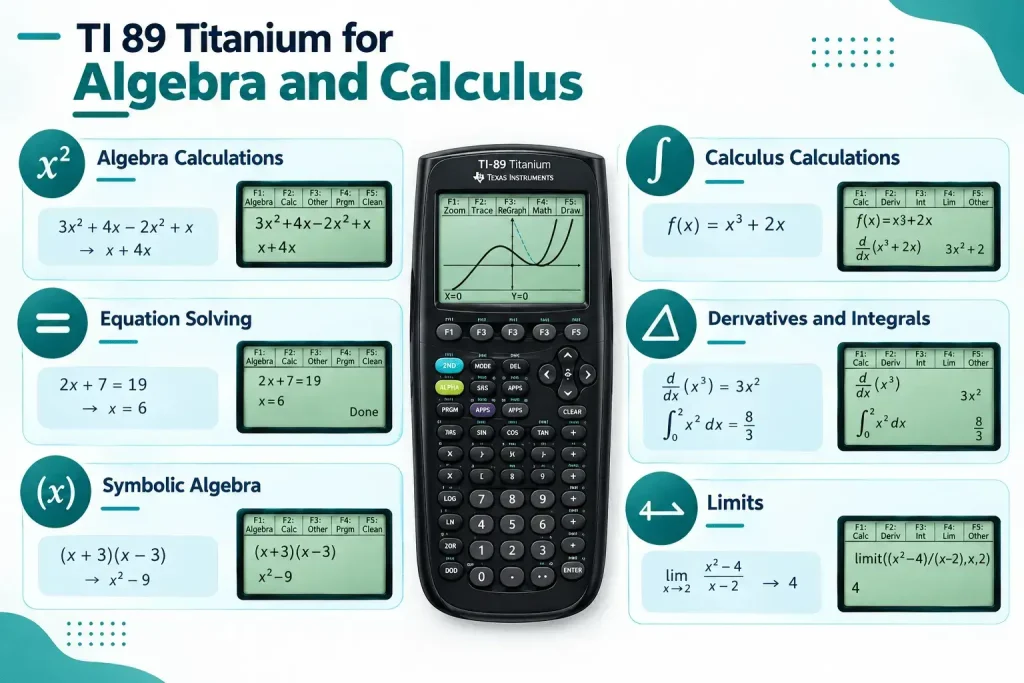
Algebra and calculus are where a computer algebra system becomes particularly useful. Instead of treating every problem as a sequence of numerical operations, the calculator can work with mathematical expressions and relationships in forms that are easier to examine and manipulate.
Algebra Calculations
Use the calculator for expressions involving variables, fractions, powers, roots, polynomials, and other common algebraic forms. For example, if you need to simplify an expression such as 3x² + 4x − 2x² + x, the calculator can help you check the simplified result without combining every term manually.
Equation Solving
Equations can be entered directly when you need to find an unknown value. For example, with an equation such as 2x + 7 = 19, you can use the calculator to find the value of x and then substitute it back into the original equation to check the solution.
Symbolic Algebra
Symbolic algebra lets you work with expressions containing variables rather than replacing everything with numerical values. For example, an expression such as (x + 3)(x − 3) can be simplified while keeping x as a variable, giving you an exact algebraic result instead of a single numerical value.
Calculus Calculations
Calculus problems often involve expressions that are difficult to evaluate manually. For example, if you are studying the function f(x) = x³ + 2x, you can use the calculator to work with supported calculus operations and check the results from your own calculations.
Derivatives and Integrals
Derivatives can be used to examine how a function changes, while integrals can be used for accumulation and area related problems. For example, finding the derivative of x³ gives 3x², while a definite integral can be used to calculate the accumulated area under a function between two specified values.
Limits
Limits are used to examine the value a function approaches as its input moves toward a particular point. For example, you can evaluate the limit of (x² − 4)/(x − 2) as x approaches 2, where direct substitution produces an undefined expression but the limit itself has a finite value.
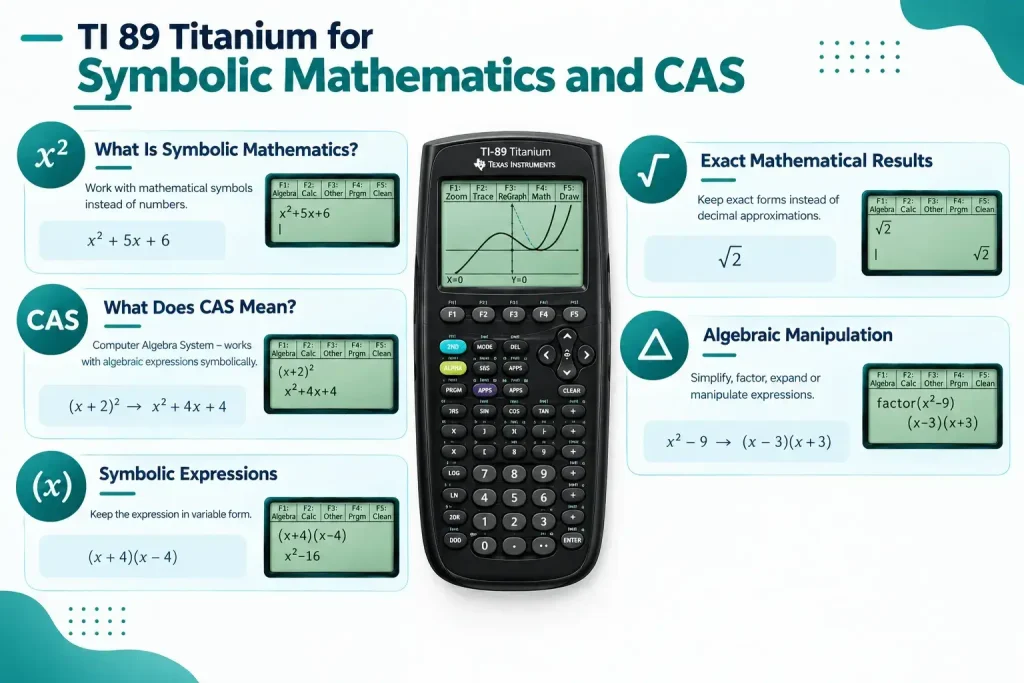
Symbolic Mathematics and CAS
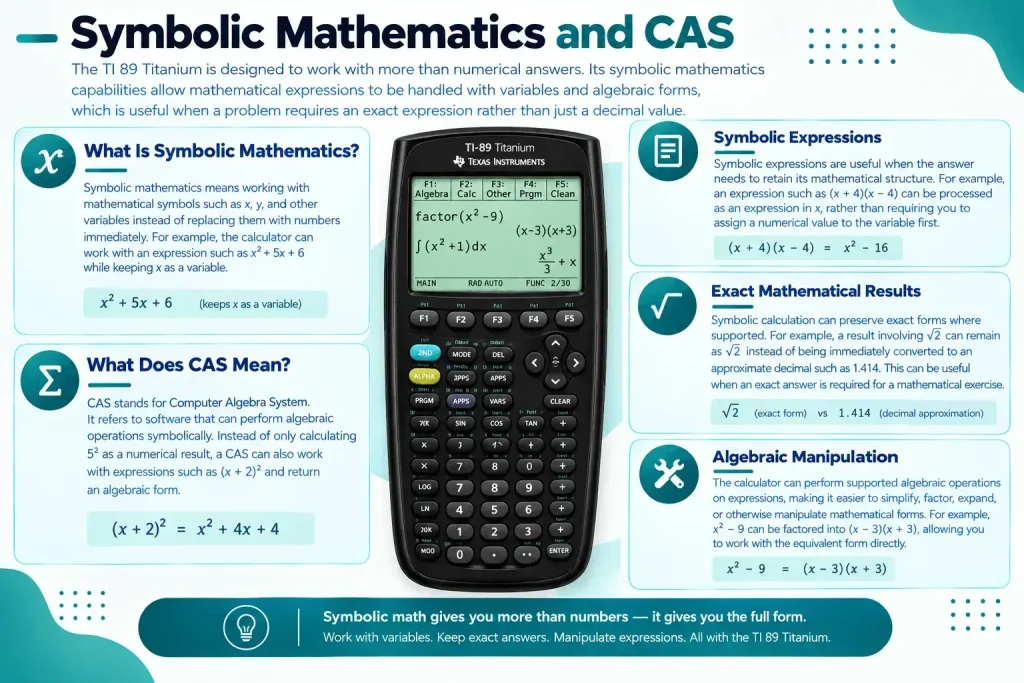
It’s designed to work with more than numerical answers. Its symbolic mathematics capabilities allow mathematical expressions to be handled with variables and algebraic forms, which is useful when a problem requires an exact expression rather than just a decimal value.
What Is Symbolic Mathematics?
Symbolic mathematics means working with mathematical symbols such as x, y, and other variables instead of replacing them with numbers immediately. For example, the calculator can work with an expression such as x² + 5x + 6 while keeping x as a variable.
What Does CAS Mean?
CAS stands for Computer Algebra System. It refers to software that can perform algebraic operations symbolically. Instead of only calculating 5² as a numerical result, a CAS can also work with expressions such as (x + 2)² and return an algebraic form.
Symbolic Expressions
Symbolic expressions are useful when the answer needs to retain its mathematical structure. For example, an expression such as (x + 4)(x − 4) can be processed as an expression in x, rather than requiring you to assign a numerical value to the variable first.
Exact Mathematical Results
Symbolic calculation can preserve exact forms where supported. For example, a result involving √2 can remain as √2 instead of being immediately converted to an approximate decimal such as 1.414. This can be useful when an exact answer is required for a mathematical exercise.
Algebraic Manipulation
The calculator can perform supported algebraic operations on expressions, making it easier to simplify, factor, expand, or otherwise manipulate mathematical forms. For example, x² − 9 can be factored into (x − 3)(x + 3), allowing you to work with the equivalent form directly.
Calculator Keyboard
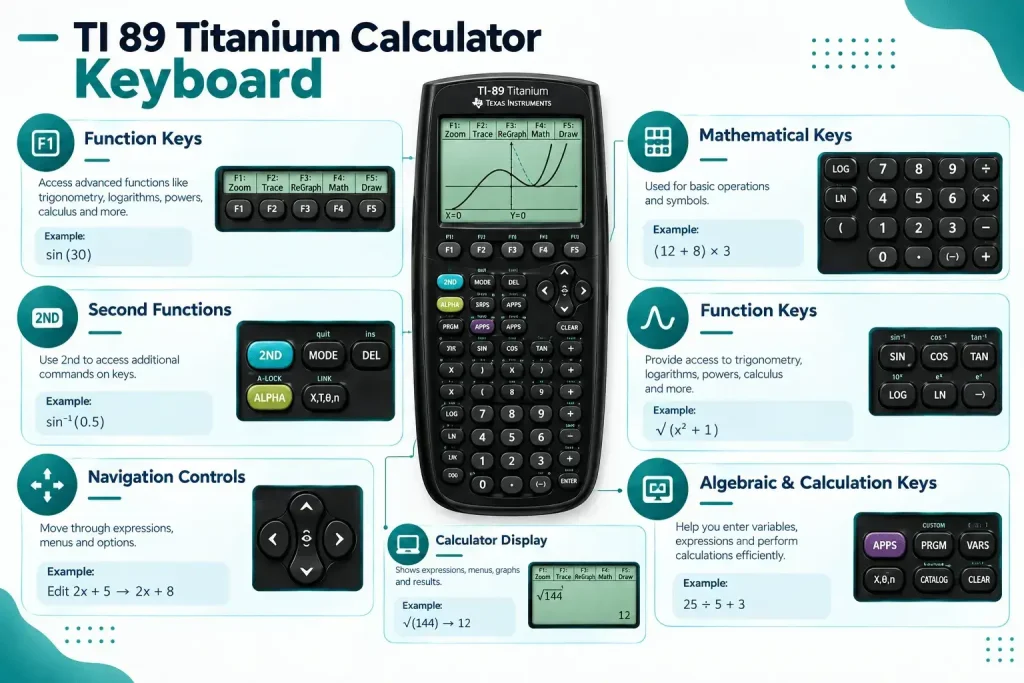
The keyboard is the main way to enter numbers, operators, variables, commands, and mathematical functions. When using the online version, understanding the key groups makes it easier to find the control you need and enter calculations correctly.
Calculator Keyboard Layout
The keyboard groups related controls together, including the number pad, mathematical operators, function keys, navigation controls, and secondary functions. For example, a simple calculation such as 25 ÷ 5 + 3 uses the number keys and basic operation keys, while a problem such as √(x² + 1) requires additional mathematical functions.
Function Keys
Function keys provide access to operations that go beyond basic arithmetic. For example, when working with a trigonometric problem such as sin(30), you would use the appropriate trigonometric function before entering the angle. Similar function controls can be used for logarithms, powers, calculus operations, and other supported calculations.
Second Functions
The 2nd key gives access to additional commands assigned to existing keys. For example, if a key has an inverse trigonometric function as its secondary function, using 2nd followed by that key lets you enter an operation such as sin⁻¹(0.5) without needing a separate key for the command.
Navigation Controls
Navigation controls help you move through an expression or calculator interface. For example, if you enter 2x + 5 and notice that the 5 needs to be changed to 8, the directional keys let you move the cursor back to that value instead of entering the entire expression again.
Mathematical Keys
Mathematical keys are used for common operations such as addition, subtraction, multiplication, division, powers, parentheses, and related functions. For example, calculating (12 + 8) × 3 requires parentheses, addition, multiplication, and number keys in a specific order.
Calculator Display
The display shows entered expressions, menus, graphs, and calculated results. For example, after entering √(144), the display lets you confirm the expression before calculating and then shows the resulting value. When entering a longer expression, checking the display can also help catch a misplaced parenthesis or operator before you continue.
Functions and Commands
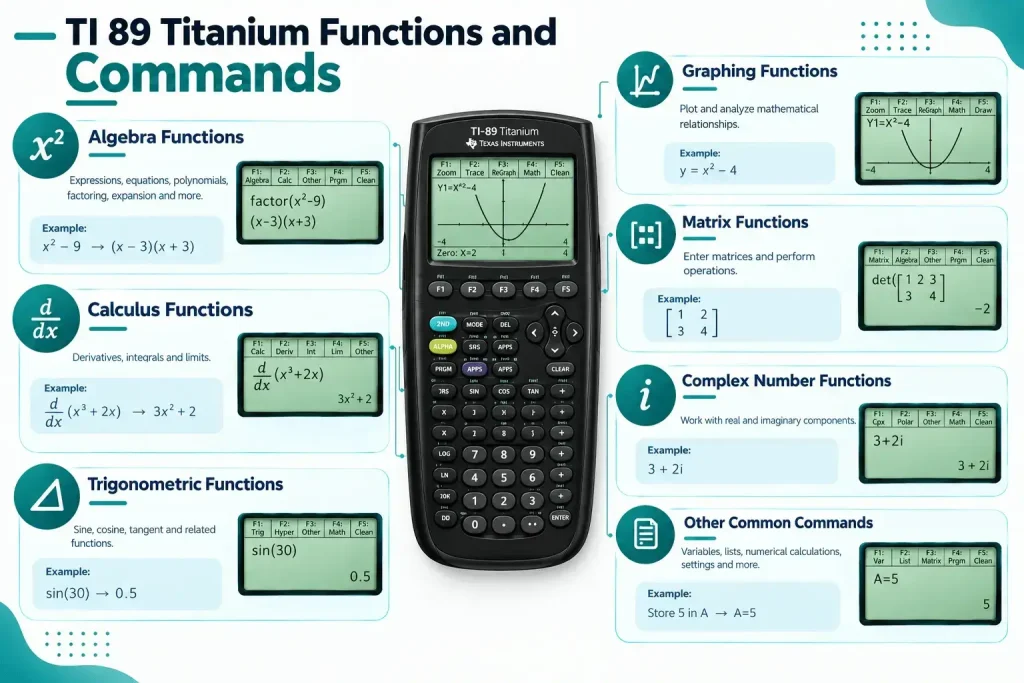
The calculator has a wide range of functions and commands for different types of mathematical work. Knowing which group a command belongs to makes it easier to find the right operation when entering a problem or checking a result.
Algebra Functions
Algebra functions are used for expressions, equations, polynomials, factoring, expansion, and related operations. For example, an expression such as x² − 9 can be factored into (x − 3)(x + 3) instead of working through the factorization manually.
Calculus Functions
Calculus functions cover operations such as derivatives, integrals, and limits. For example, the derivative of x³ + 2x can be evaluated to obtain 3x² + 2, which can then be used when studying the behavior of the original function.
Trigonometric Functions
Trigonometric functions include operations such as sine, cosine, and tangent, along with their related functions. For example, sin(30) can be evaluated when the calculator is set to the appropriate angle mode.
Graphing Functions
Graphing functions are used to enter and examine mathematical relationships visually. For example, entering y = x² − 4 lets you view the corresponding parabola and examine features such as its zeros and shape.
Matrix Functions
Matrix functions allow you to enter matrices and perform supported operations on them. For example, a two by two matrix can be used in calculations involving determinants, inverses, or systems of equations.
Complex Number Functions
Complex number functions are useful when a calculation contains both real and imaginary components. For example, an expression such as 3 + 2i can be entered and used in supported arithmetic with other complex values.
Other Common Commands
Other commands handle tasks that do not fall into a single mathematical category. These can include commands for variables, lists, numerical calculations, settings, and calculator control. For example, storing a value in a variable can save you from entering the same number repeatedly during a longer calculation.
Technical Specifications
The technical specifications help explain what makes the titanium graphing calculator different from a basic scientific calculator. Its display, memory, connectivity, programming support, and mathematical capabilities were designed around more advanced mathematics and calculator applications.
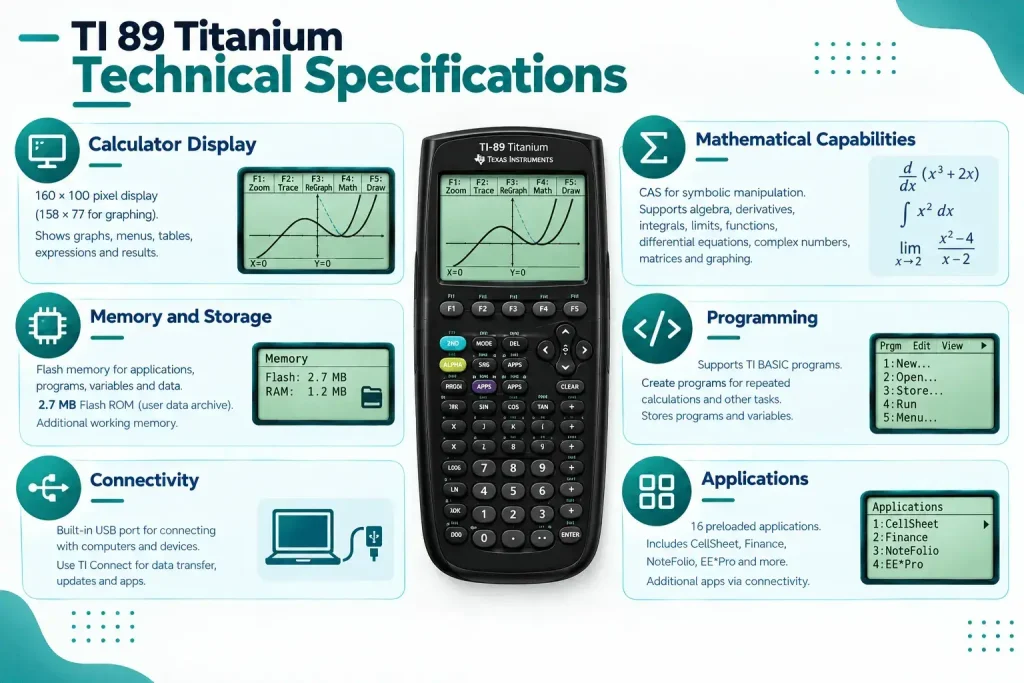
Calculator Display
It’s uses a 160 × 100 pixel display, with 158 × 77 pixels available for graphing. The screen can show mathematical expressions, menus, tables, graphs, and calculated results, making it possible to work with both numerical and symbolic mathematics on the same device.
Memory and Storage
The calculator includes Flash memory for storing applications, programs, variables, and other calculator data. Texas Instruments lists 2.7 MB of Flash ROM available for the user data archive in this calculator. It also has additional working memory used while calculations and programs are running.
Mathematical Capabilities
It includes a Computer Algebra System that allows it to manipulate mathematical expressions symbolically rather than working only with numerical values. Supported operations include symbolic algebra, derivatives, integrals, limits, functions, differential equations, complex numbers, matrices, and graphing.
Connectivity
It has a built in USB port for connecting with compatible computers and other devices. TI Connect software can be used with the calculator to transfer data, update the operating system, and install calculator applications.
Programming
Programming is another part of the calculator’s functionality. TI online calculator supports programs written in TI BASIC, allowing users to create programs for repeated calculations and other tasks. Calculator memory can also store programs and related variables.
Applications
It comes with 16 preloaded applications covering different areas of mathematics, science, engineering, and productivity. Examples include the CellSheet application, Finance application, NoteFolio application, and EE*Pro. Additional calculator applications can also be transferred using compatible connectivity software.
Applications and Software
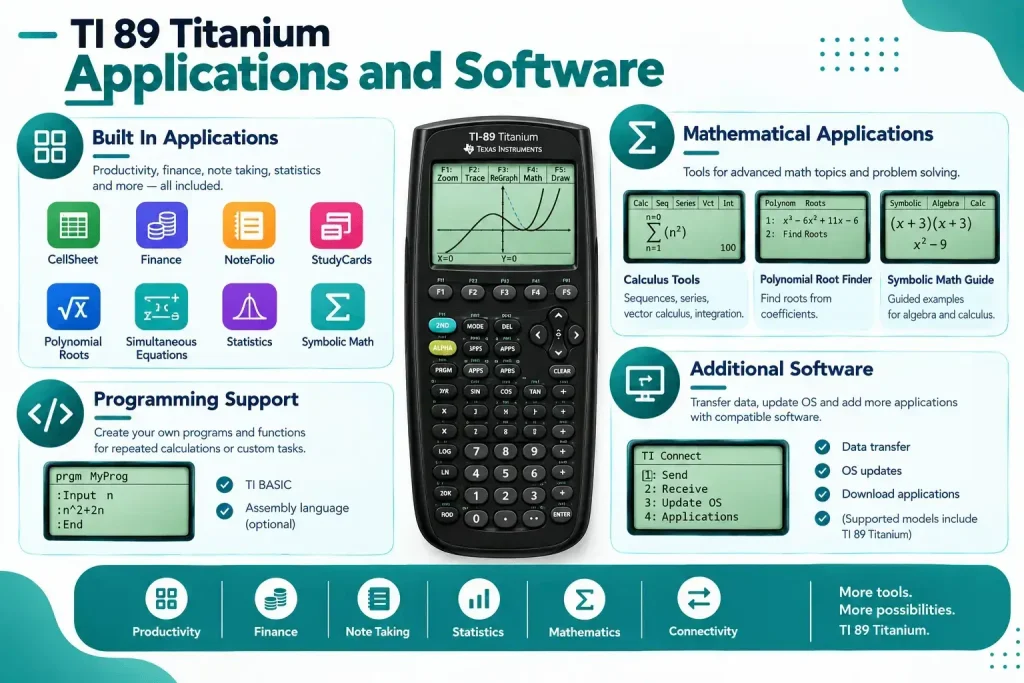
Applications add specific tools to the calculator for subjects and tasks that go beyond basic calculations. It includes several preloaded applications and also supports additional software that can be transferred to the calculator. This makes the calculator useful for mathematics, science, engineering, finance, note taking, and other types of work.
Built In Applications
The calculator includes applications for different types of work. For example, CellSheet provides spreadsheet style functionality, Finance supports financial calculations, NoteFolio can be used for taking notes, and StudyCards can be used for creating study cards. Other included applications support tasks such as polynomial roots, simultaneous equations, statistics, and symbolic mathematics.
Mathematical Applications
Several applications are focused specifically on mathematics. For example, the Calculus Tools App provides additional ways to study topics such as sequences, series, vector calculus, and numerical integration. The Polynomial Root Finder can work with polynomial coefficients and roots, while the Symbolic Math Guide provides guided examples involving algebra and calculus.
Programming Support
The TI 89 Titanium can also be extended through programming. Users can create their own functions and programs for repeated calculations or specific tasks. The calculator supports TI BASIC, while its technical documentation also describes optional assembly language programming.
Additional Software
Additional applications can be transferred to the calculator when compatible software is available. TI Connect provides a way to transfer data between a computer and supported graphing calculators, update the operating system, and download calculator applications. TI calculator is among the supported models.
For example, a user working on a physical calculator could use TI Connect to move an application or other calculator data from a computer to the device. The online calculator on this site is intended for browser based calculations, so these physical calculator software features should not be confused with the functions available in the online version.
TI 89 vs TI 89 Titanium
The TI 89 and TI 89 Titanium share many of the same core mathematical capabilities, including symbolic mathematics, graphing, algebra, calculus, and programming. The Titanium version was introduced with several hardware and software changes that distinguish it from the earlier TI 89.
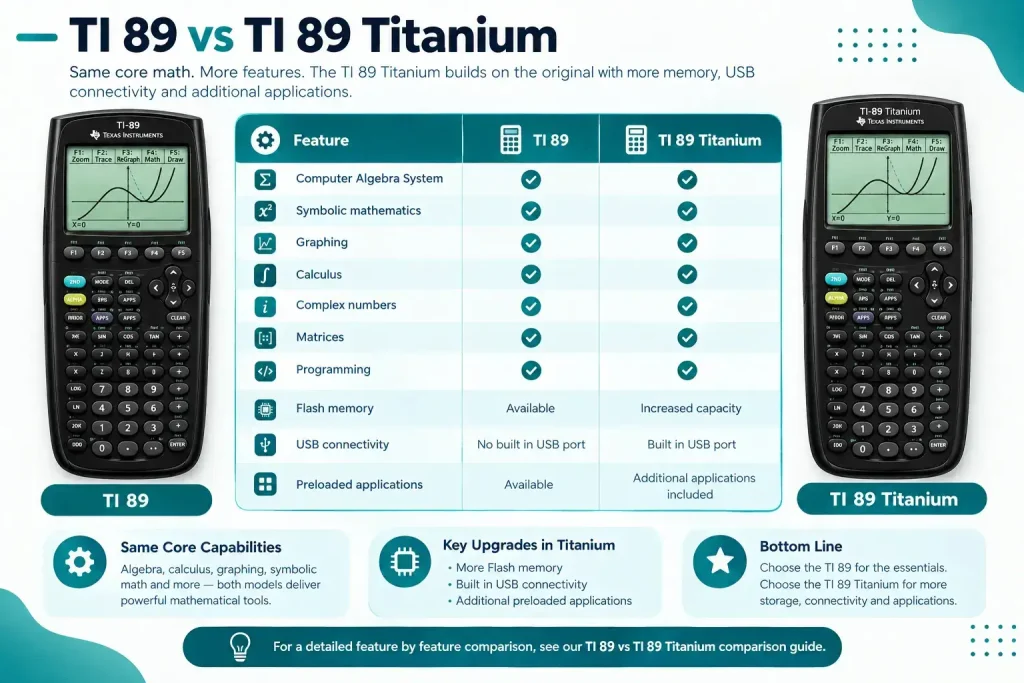
| Feature | TI 89 | TI 89 Titanium |
| Computer Algebra System | Yes | Yes |
| Symbolic mathematics | Yes | Yes |
| Graphing | Yes | Yes |
| Calculus | Yes | Yes |
| Complex numbers | Yes | Yes |
| Matrices | Yes | Yes |
| Programming | Yes | Yes |
| Flash memory | Available | Increased capacity |
| USB connectivity | No built in USB port | Built in USB port |
| Preloaded applications | Available | Additional applications included |
The biggest practical differences are related to storage, connectivity, and the applications supplied with the calculator. The TI 89 Titanium provides more Flash memory and built in USB connectivity, while also including additional applications. Its keyboard and software were designed to maintain compatibility with many existing TI 89 programs and materials.
If you are using the calculator for algebra, calculus, graphing, or symbolic mathematics, the two models have substantial overlap in their core capabilities. The differences become more noticeable when you look at storage, connectivity, applications, and compatibility requirements.
For a detailed feature by feature comparison, see our TI 89 vs TI 89 Titanium comparison guide.
Who Should Use the TI 89?
The original TI 89 can make sense for someone who already has the calculator and needs its established algebra, calculus, graphing, symbolic mathematics, and programming capabilities. It can also be relevant when a course, existing program, or set of instructions specifically refers to the original TI 89.
For example, if you are following older classroom material that uses TI 89 keystrokes, keeping the original model can make the instructions easier to follow without switching to a different calculator interface.
Who Should Use the Texas Instruments TI 89 Titanium Graphing Calculator?
It’s relevant when you need the same core mathematical environment along with the Titanium model’s additional hardware and software features. Its increased Flash memory, built in USB connectivity, and additional preloaded applications distinguish it from the original TI 89.
For example, someone working with calculator applications or transferring files between a computer and a physical calculator may find the Titanium’s connectivity and additional storage particularly relevant.
If your main goal is simply to perform TI 89 style mathematics in a browser, you can use the online calculator on this page without needing to own either physical model.
TI 89 Titanium vs TI 84 Plus CE
The TI 89 Titanium and TI 84 Plus CE are both graphing calculators, but they are designed around somewhat different types of mathematical work. The TI 89 Titanium includes a Computer Algebra System for symbolic mathematics, while the TI 84 Plus CE focuses on graphing, numerical calculations, statistics, and a color display.
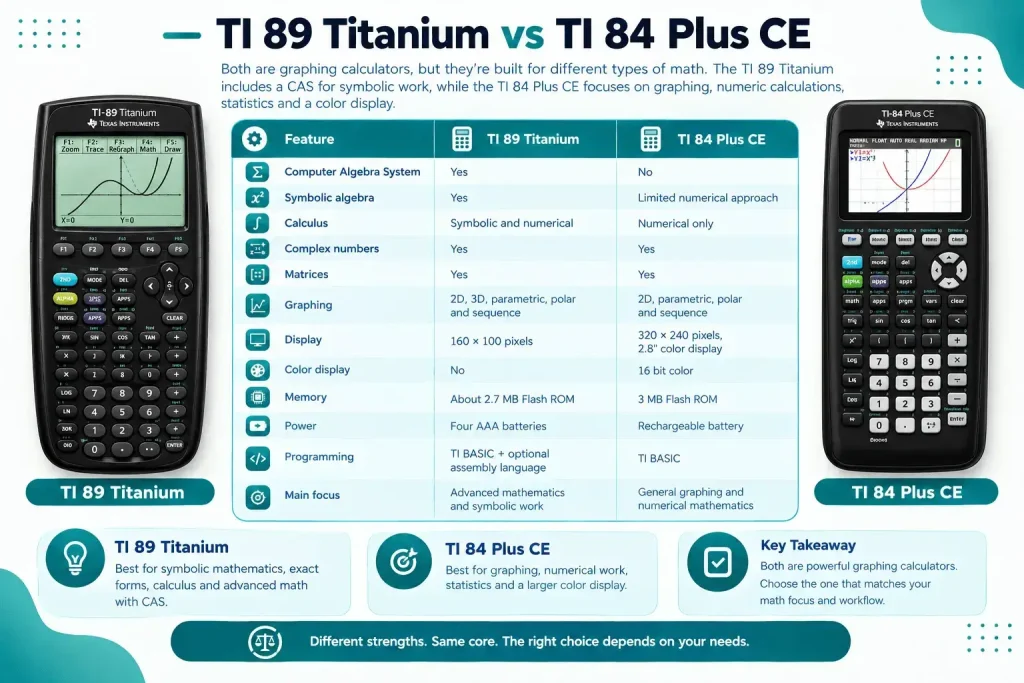
| Feature | TI 89 Titanium | TI 84 Plus CE |
| Computer Algebra System | Yes | No |
| Symbolic algebra | Yes | Limited numerical approach |
| Calculus | Symbolic and numerical capabilities | Numerical calculus functions |
| Complex numbers | Yes | Yes |
| Matrices | Yes | Yes |
| Graphing | 2D, 3D, parametric, polar and sequence graphing | 2D, parametric, polar and sequence graphing |
| Display | 160 × 100 pixels | 320 × 240 pixels, 2.8 inch color display |
| Color display | No | 16 bit color |
| Memory | About 2.7 MB user available Flash ROM | 3 MB Flash ROM |
| Power | Four AAA batteries | Rechargeable battery |
| Programming | TI BASIC and optional assembly language | TI BASIC |
| Main focus | Advanced mathematics and symbolic work | General graphing and numerical mathematics |
The biggest difference is the way the calculators handle mathematics. The TI 89 Titanium can manipulate expressions symbolically, which is useful for tasks such as factoring, solving equations symbolically, finding derivatives, evaluating integrals, and working with exact mathematical forms.
The TI 84 Plus CE has a larger full color display and is designed around graphing and numerical mathematics. It supports rectangular, parametric, polar, and sequence graphing, along with statistics, equation solving, derivatives, integrals, and other commonly used functions.
For example, if you are working with an expression such as x² − 9 and need its factored form, the symbolic capabilities of the TI 89 Titanium can be useful. If your main task is viewing several functions on a color graph and working with numerical results, the TI 84 Plus CE provides a different type of calculator experience.
For detailed differences in specific subjects, graphing features, and calculator functions, see our TI 89 Titanium vs TI 84 Plus CE comparison guide.
Online Calculator vs Physical Calculator
A physical calculator is useful when you need a dedicated device, but there are situations where using a calculator online is more convenient. A browser based calculator can be opened from a computer or another supported device and used without carrying a separate calculator with you.
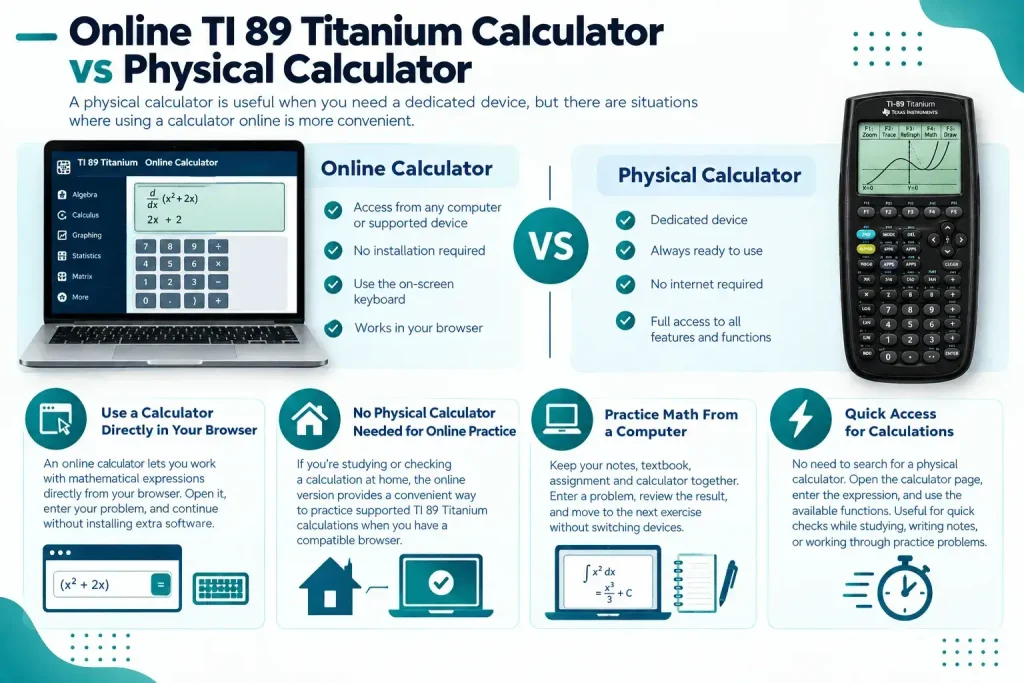
Use a Calculator Directly in Your Browser
An online calculator lets you work with mathematical expressions directly from your browser. You can open the calculator, enter your problem through the on screen keyboard, and continue working without installing a separate desktop application.
No Physical Calculator Needed for Online Practice
If you are studying or checking a calculation at home, you may not need a physical calculator beside you. The online version provides a convenient way to practice supported TI 89 Titanium calculations when you have access to a compatible browser.
For example, a student reviewing an algebra problem on a laptop can enter the expression into the online calculator and compare the displayed result with their handwritten work.
Practice Math From a Computer
Using the calculator on a computer can be useful when your notes, textbook, assignment, and calculator are all part of the same study session. You can enter a problem, review the result, and continue with the next exercise without switching between devices.
Quick Access for Calculations
There is no need to search for a physical calculator every time you want to check a supported calculation. Open the calculator page, enter the expression, and use the available functions. This can be especially useful for quick checks while studying, writing notes, or working through a series of practice problems.
Who Can Use the TI 89 Titanium Calculator?
It can be useful for anyone working with the types of mathematics supported by its calculator functions. The online version is especially useful when you want to practice, check calculations, or work through problems without having a physical calculator available.

Students
Students can use the calculator while studying mathematics, completing practice problems, or checking their own calculations. It can be useful when a problem involves several steps or requires functions that are difficult to evaluate manually.
Mathematics Students
Students taking algebra, calculus, trigonometry, or other advanced mathematics courses can use the calculator for symbolic expressions, equations, graphs, derivatives, integrals, and related calculations.
For example, a calculus student can use it to check a derivative they calculated by hand before moving on to the next exercise.
Engineering Students
Engineering mathematics often involves equations, matrices, complex numbers, functions, and other calculations that require more than basic arithmetic. The calculator can be useful for checking these calculations during study and practice.
Science Students
Science students may encounter mathematical calculations while studying physics, chemistry, or other technical subjects. An online calculator can provide a convenient way to check supported equations, numerical values, graphs, and mathematical expressions while working through coursework.
Teachers and Instructors
Teachers and instructors can use the calculator when preparing examples, checking mathematical results, or demonstrating calculator based methods during lessons. The online version can also be useful when preparing material on a computer.
Anyone Practicing Advanced Mathematics
You do not need to be enrolled in a specific course to use the calculator. Anyone practicing algebra, calculus, graphing, symbolic mathematics, or other supported areas can use the online version to work through problems and verify results.
Common Texas Instruments TI 89 Titanium Calculator Problems
Even a correct mathematical method can produce an unexpected result if the expression is entered incorrectly or the calculator is using a different setting than expected. A quick check of the input, mode, and displayed result can often identify the source of the problem.
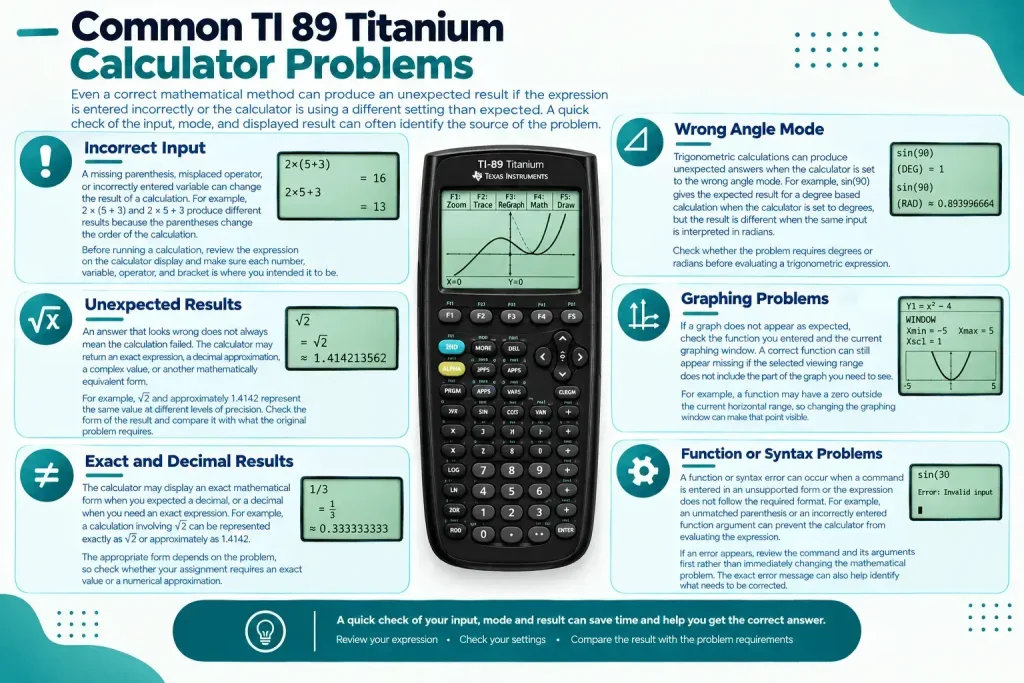
Incorrect Input
A missing parenthesis, misplaced operator, or incorrectly entered variable can change the result of a calculation. For example, 2 × (5 + 3) and 2 × 5 + 3 produce different results because the parentheses change the order of the calculation.
Before running a calculation, review the expression on the calculator display and make sure each number, variable, operator, and bracket is where you intended it to be.
Wrong Angle Mode
Trigonometric calculations can produce unexpected answers when the calculator is set to the wrong angle mode. For example, sin(90) gives the expected result for a degree based calculation when the calculator is set to degrees, but the result is different when the same input is interpreted in radians.
Check whether the problem requires degrees or radians before evaluating a trigonometric expression.
Unexpected Results
An answer that looks wrong does not always mean the calculation failed. The calculator may return an exact expression, a decimal approximation, a complex value, or another mathematically equivalent form.
For example, √2 and approximately 1.4142 represent the same value at different levels of precision. Check the form of the result and compare it with what the original problem requires.
Graphing Problems
If a graph does not appear as expected, check the function you entered and the current graphing window. A correct function can still appear missing if the selected viewing range does not include the part of the graph you need to see.
For example, a function may have a zero outside the current horizontal range, so changing the graphing window can make that point visible.
Exact and Decimal Results
The calculator may display an exact mathematical form when you expected a decimal, or a decimal when you need an exact expression. For example, a calculation involving √2 can be represented exactly as √2 or approximately as 1.4142.
The appropriate form depends on the problem, so check whether your assignment requires an exact value or a numerical approximation.
Function or Syntax Problems
A function or syntax error can occur when a command is entered in an unsupported form or the expression does not follow the required format. For example, an unmatched parenthesis or an incorrectly entered function argument can prevent the calculator from evaluating the expression.
If an error appears, review the command and its arguments first rather than immediately changing the mathematical problem. The exact error message can also help identify what needs to be corrected.